Why to make a good UNSW CSE setup
An explanation for why you should invest time into creating a good setup for connecting to CSE which does not involve using the sshfs extension.
Why to make a good UNSW CSE setup
2023-11-21
Previous Work
There has been previous articles written about this very topic. they go further into how to make a good setup. You should read these if you are convinced by this blog 😎.
Maddy is a fellow 1531 tutor who made a good article about this topic a while ago. Their guide is still relevant and effective today, and you should use it as a baseline.
Abiram has written a copious, unreasonable amount of blogs about this, and is mostly sick of hearing about it. His content is very good, so you should read it if you want to hear some of the contentious history around this topic.
Introduction
Hi there, enterprising first or second year student!
I was a first year tutor for 1531 - so I have seen a bunch of different ehem creative setups through my students. Admittedly, a lot of the common mistakes are because people only were looking for "good enough" when setting up their machines. This is completely reasonable, and is part of the reason I wanted to write this - to explain why investing a little bit more effort will let you be more lazy, not less lazy. I use a local (non-SSHFS) VSCode setup, but I use it as a tool to demonstrate the usefulness of any IDE-like experience.
So, namely - what does a good setup enable?
Correct, incredibly helpful intellisense 💡
When watching students, there are things I hear them say like "Why is my language not smart enough to know what I mean?" These remarks will follow things like:
- A compilation error due to a missing import,
- A miss-spelling of a function, variable or method,
- A frustrating time searching for the right documentation for their function,
- or giving the parameters of a function in the wrong order.
You, dear student, are 100% correct in your observation! The world has long moved on from such trivialities, and have generated a tool called "intellisense" to make this stuff trivially easy to notice and fix without disrupting your workflow (at least for modern languages - C is still a pain in the ass). For full details, read the intellisense plugin documentation. Assuming you use VSCode, you probably do have this extension, but the problem is that it does not work if you use the SSHFS extension - which most first year courses recommend. There is a logic around this, which lies in removing complexity and forcing students to tackle the issues above. This is to make students understand exactly what is going on at all times. As we evolve as engineers however, this becomes more of a hinderance.
Ignoring this extension makes you lose magic like:
-
Auto imports
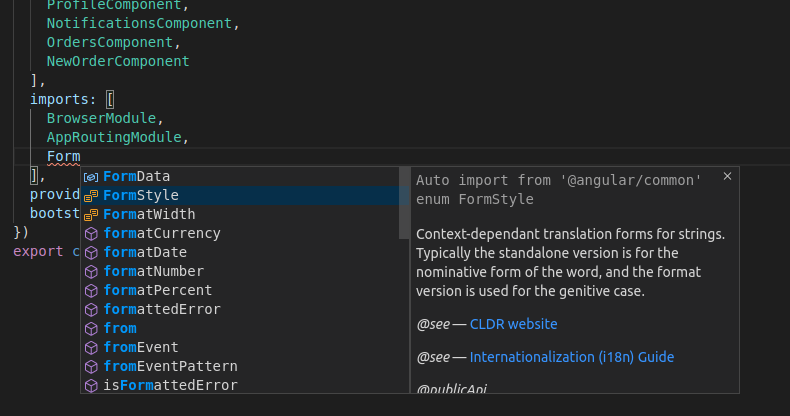 this feature lets you search for some symbol in your codebase that you have not imported yet. You won't even have to find it - vscode will find it and write the import statement for you! This is a menial and frustrating task which just vanishes.
-
catch compilation errors as you write them
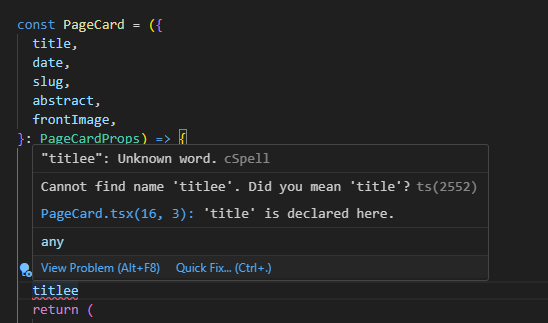 Intellisense is essentially continuously compiling your code, and reading the errors generated. Then, it will highlight exactly what line the error is on and report it back to you. This is incredibly useful, because again - it gives you feedback when you need it. I don't really want to get into a zen state only to find out that I have a compilation error I cannot solve. I also don't want to write a really cool function and be sad when I realise I still have to spend 20 mins to make it compile at all. It also lets you fully make use of type-hinting. this means that you can hover over a symbol and see what items or functions you can access. This feature is a godsend and lets you use the command-line only after you are pretty confident in what you made. It also helps you be a good human - you will never let yourself check code into git unless you see no red lines - and intellisense gives you a way to rapidly fix it.
 -
show you documentation and types of symbols on hover
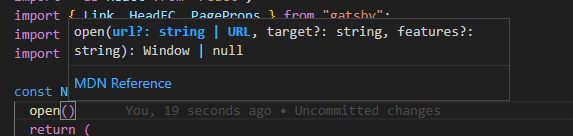 Intellisense also lets you skip having to search documentation all the time. Instead, it will give you the documentation you need right when you need it. It also even lets you search for the operation you want. in the above example, I wrote
 opand this function was immediately suggested to me, and imported using the auto-import feature. You cans see thatopentakes a bunch of arguments and returns aWindow. This is really useful if you already know what is going on, because you can tell exactly what each parameter should take. If you don't know what is going on, intellisense saves the day with theMDN Reference, which is a hyperlink to here, explaining exactly what that function does! Even better, this works with the docs you write too. If you use the standard documentation format for your language (e.g. jsdoc), this documentation feature will work for your own code, and the code of your teammates. If you use this correctly, your teammates will genuinely love you.
Debugging ✨
Debugging is a magical and powerful tool in all codebases. Lots of people are content with print debugging, but I will tell you right now - you are missing out. Again, the power is in the ease and feedback you get. It is easy to reach for, and you get the feedback at the right time. Here is an example from the circles codebase.
 Here, we can see that I can see an overview of all my tests. I can also click the run button and see my tests, and highlighting the failing ones.
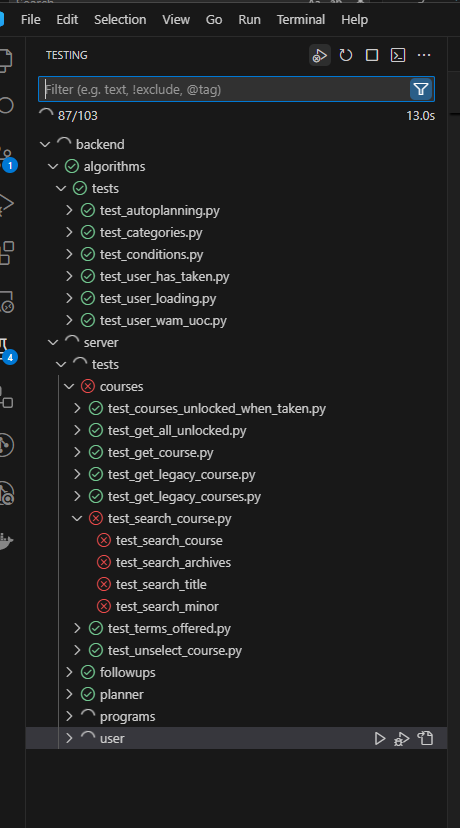 When I find a failing test, I can go to it and debug it using the VSCode debugger.
First, I add a breakpoint, indicating where I want my program to halt execution:

Then I right click the tick and click "run in debug mode":
 As soon as I do this, I can see all my variable values on the left, and can decide how quickly or slowly I traverse my program on top. Technically, all of this can be achieved using the command-line - but comes at a cost. First, you need to spend some time figuring out the right commands to run. Then you decide what information you want out of your run, by adding a load of print statements. Then, you need to run only that one specific test, which will probably already involve opening the file of the test. This IDE debugging option lets go of a lot of "toil" - meaningless work which is best eliminated to increase productivity. For a live demo of how to use the debugger, look here. Remember that this is only possible if you move off of SSHFS.
the ability to work offline 🕸️
Finally, you also have the ability to work offline. This is really important, because latency is one of the most frustrating things you can have while programming. When working, the best engineers are actually addicted to rapid iteration cycles. That means you have the shortest loop between doing something and finding the result of your change. adding latency to every keystroke is an agony I wish on no-one, but is enforced by tools like SSHFS because it relies on a network. This makes it impossible to reach a good programming flow. Having connection or latency issues robs yourself, dear reader. It robs you of the real joy you can find in programming. So, you should do everything you can to code locally, and then sync it to cse easily.
Conclusion
So, dear Reader, I hope I have convinced you to invest the time you need to making a good development environment for CSE. Please go back and read Maddy's article, which will set you up locally. The only missing feature is a way to sync between CSE and your own local machine. You can generally go without this, but if you really want to set this up and not think about it, there are 2 methods.
Use
rsyncandsshdirectly. These are linux commands that are already installed on your system. I use the following aliases:export REMOTE="z55555555@cse.unsw.edu.au" sync_cse () { location="`pwd|sed "s?/home/$USER/??"`" rsync -a "`pwd`/" $REMOTE:~/$location } alias cse="ssh $REMOTE"You can put this in your
bash_aliasesfile to be able to use them as commands. Make sure to replace 5555555 with your zID.This will let you run
sync_cseto recursively sync whatever is in your current directory into your home directory immediately. Pretty easy way to chuck your information into it. This is a 1-way sync however, so it assumes you will never need to code on your cse account directly. You can use thecsedirectory to drop into your CSE user shell.use Unison. I am only just getting the hang of it, so I think it is best to ask you to read up on it. It does however support 2-way sync, which means you can work on any machine, invoke
unison, and get a fresh copy of everything you need.
In either case, this will be a great start in increasing your productivity and taking ownership of your process - to take control of the way you work, and giving you amazing tooling to go with it. Good luck!